


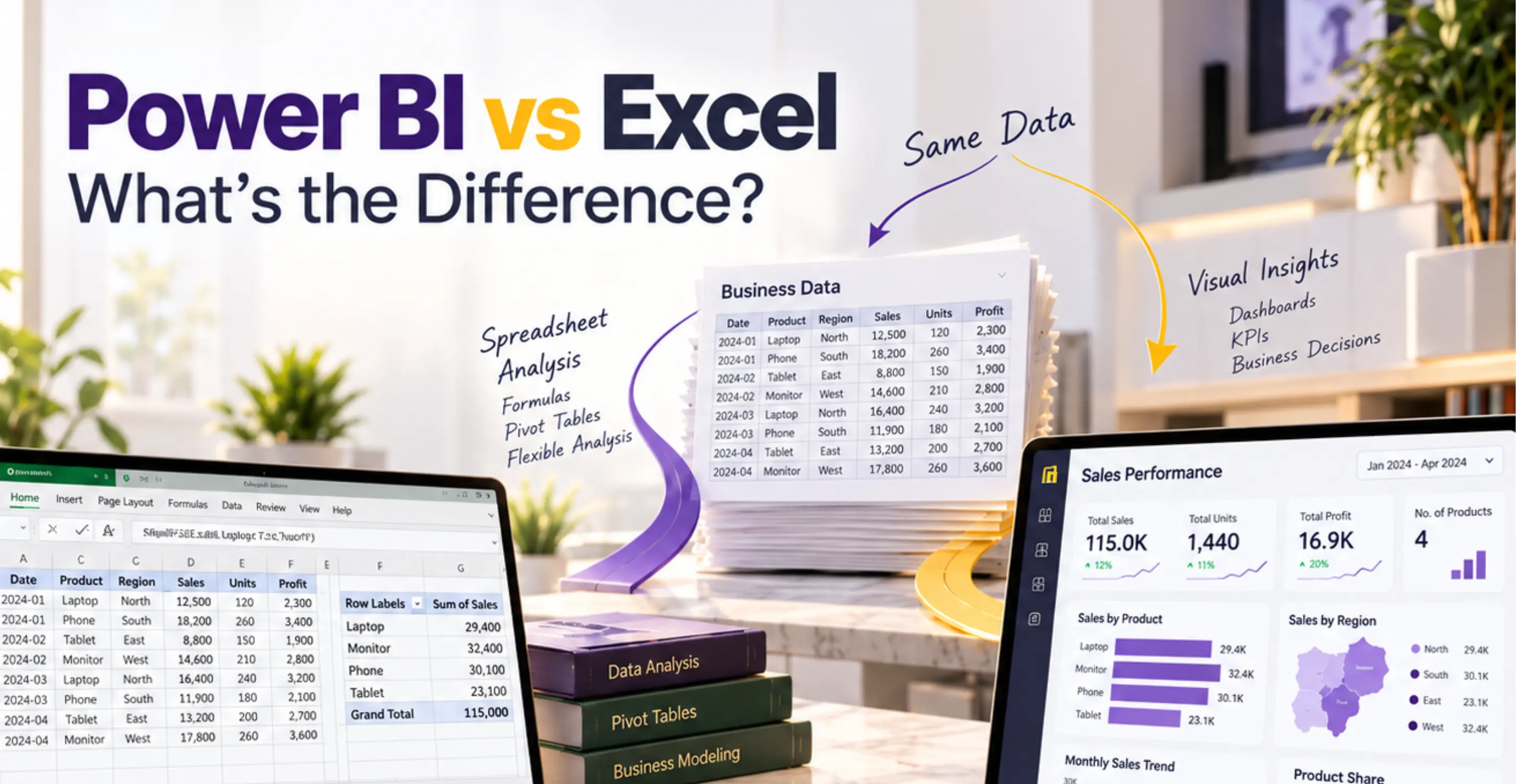
Power BI vs Excel: Which Should You Learn First?
If you are completely new to data analysis, start with Microsoft Excel. If you already understand spreadsheets and want to build interactive business reports, learn Power BI next. If your goal is specifically to become a Power BI developer or business intelligence analyst, you can also start directly with Power BI, provided you learn data fundamentals alongside it.
That is the practical answer to the Power BI vs Excel debate in 2026.
Excel remains highly useful for calculations, financial models, data preparation and everyday business analysis. Power BI is especially valuable for connecting multiple data sources, building reusable analytical models and distributing interactive reports across an organization.
The important question is not which software is more powerful. It is which tool helps you do the work you actually want to do.
This guide compares their technical capabilities, career relevance, costs, learning requirements and business applications. It also provides a learning roadmap for students, accountants, fresh graduates and aspiring data analysts.
Power BI vs Excel: Quick Comparison
Before choosing what to learn, consider how each tool is designed to work.
| Feature | Microsoft Excel | Microsoft Power BI |
|---|---|---|
| Primary purpose | Spreadsheet calculations, analysis and modeling | Business intelligence, data modeling and interactive reporting |
| Beginner accessibility | Easier for basic tasks | More concepts to learn initially |
| Data entry | Excellent for direct editing | Not primarily designed for manual entry |
| Formulas | Extensive worksheet functions | DAX calculations and model measures |
| Data cleaning | Power Query and other Excel tools | Power Query and data preparation workflows |
| Data modeling | Data Model and Power Pivot where supported | Central capability through semantic models |
| Dashboards | Charts, PivotCharts and slicers | Interactive reports with cross-filtering and drill-down |
| Financial modeling | Particularly strong | Better suited to reporting and analysis than spreadsheet-style model building |
| Multiple data sources | Supported | Strong connectivity and integration |
| Automation | Refresh, formulas, scripts and other tools | Model refresh and report distribution, subject to configuration |
| Collaboration | Microsoft 365 coauthoring and file sharing | Workspace-based publishing, permissions and sharing |
| Large datasets | Advanced capabilities beyond worksheet limits | Built for analytical models, subject to capacity and design limits |
| Pricing | Depends on Microsoft 365 or Excel license | Free Desktop application; service sharing may require paid licenses |
| Platforms | Windows, Mac, web and mobile, with feature differences | Desktop on Windows; web service and mobile experiences |
| Best for | Students, accountants, finance teams, general business users | BI analysts, reporting teams, dashboard developers |
| Learning recommendation | Usually learn first | Learn first for a focused BI career, or after Excel fundamentals |
The key difference: Excel gives you a flexible environment for working directly with data and calculations. Power BI provides a structured environment for preparing, modeling, analyzing and distributing data.
Neither is limited to just one function.
What Is Microsoft Excel?
Microsoft Excel is a spreadsheet application used to organize information, perform calculations, analyze business data and build financial or operational models.
Imagine an accountant preparing a monthly expense report.
In Excel, they can import transactions, categorize expenditure, calculate totals, compare results against a budget and prepare charts for management.
The same application can help a sales executive calculate commissions, an HR manager analyze attendance or a finance analyst prepare a five-year financial forecast.
Excel includes much more than rows and columns.
Its analytical capabilities include:
-
Formulas: Functions such as SUMIFS, XLOOKUP, IF and dynamic arrays for calculations and data manipulation.
-
Excel Tables: Structured datasets with filtering, sorting and calculated columns.
-
PivotTables: Tools for summarizing and examining information without manually building every calculation.
-
PivotCharts: Visual representations of summarized data.
-
Power Query: Technology for importing, cleaning and transforming information.
-
Power Pivot: Advanced data modeling and calculations where supported.
-
Data validation and auditing: Tools for controlling inputs and tracing calculations.
-
Automation: Refreshable connections, Office Scripts or VBA where available.
These capabilities explain why Excel remains relevant even in organizations that use advanced business intelligence platforms.
According to Microsoft's Power Pivot documentation, Excel can work with relational data models and calculations extending beyond ordinary spreadsheet formulas.
For many professional activities, learning Excel is not merely preparation for another tool. It is a valuable skill in its own right.
What Is Microsoft Power BI?
Microsoft Power BI is a business intelligence platform for connecting to data, preparing it, building analytical models and creating reports that people can explore interactively.
Suppose a retail chain operates 30 branches.
Management wants to examine sales by branch, product category, region and month. The business also wants consistent reporting, rather than asking every branch manager to prepare a separate workbook.
Power BI can connect to the relevant sources, organize the information into a model and present it through interactive reports.
Users can select a branch, examine its performance, filter sales by product and investigate changes over time.
The platform includes several connected capabilities.
Power BI Desktop is a free Windows application used to connect to data, develop models and build reports.
Power Query prepares and transforms source data.
Semantic models define tables, relationships, measures and the business logic behind reporting.
DAX, or Data Analysis Expressions, supports calculations within those models.
The Power BI service provides an online environment for working with reports, managing workspaces and distributing content, subject to licensing and permissions.
Power BI also supports scheduled refresh in eligible configurations and governance features such as row-level security.
A critical distinction is that creating a report in Power BI Desktop and distributing it to an entire organization are not the same thing.
Microsoft explains these capabilities in its Power BI Desktop getting-started documentation.
Excel vs Power BI: The 10 Main Differences
1. Data Entry and Manual Work
Excel is generally the better choice when employees need to type information, edit individual values or develop calculations directly inside a table.
Consider a business owner preparing a monthly expense budget. They may need to change assumptions, add expenditure categories and experiment with different figures.
Excel makes those activities straightforward.
Power BI is not intended to replace an ordinary spreadsheet's direct-editing experience. Its strength lies in analyzing data that already exists in spreadsheets, databases, applications or other sources.
Choose Excel when direct editing and flexible calculations are central to the task.
2. Data Cleaning and Transformation
Both Excel and Power BI can prepare messy data using Power Query.
For example, a business receives monthly sales files with inconsistent dates, duplicate records and differently formatted product names.
Instead of correcting each file manually, an analyst can create repeatable transformation steps.
The distinction is usually what happens afterward.
Excel users may load the cleaned results into worksheets or the Data Model. Power BI users generally prepare the data for semantic modeling and reporting.
The underlying skills overlap substantially.
3. Formulas and Calculations
Excel formulas are particularly useful for cell-based calculations, custom financial models, scenario analysis and operational worksheets.
Power BI primarily uses DAX measures and calculated expressions in its analytical models.
Consider calculating annual revenue.
An Excel analyst might use SUMIFS or a PivotTable to summarize sales.
A Power BI analyst could define a reusable revenue measure that responds automatically when a report viewer selects a region, date range or product category.
Neither approach is inherently superior. They serve different analytical workflows.
4. Data Modeling
Data modeling involves organizing tables, defining relationships and ensuring calculations produce consistent results.
Excel supports relationships and data modeling through its Data Model and Power Pivot capabilities, where available.
Power BI places modeling closer to the center of the reporting workflow.
For instance, a business may have separate tables for orders, customers, products and calendar dates.
Rather than repeatedly copying customer and product details into every transaction record, an analyst can connect those tables through appropriate relationships.
Microsoft recommends established modeling practices such as the star schema for Power BI semantic models.
5. Charts and Dashboards
Excel can create dashboards using charts, PivotCharts, slicers, conditional formatting and formulas.
It is incorrect to say Excel cannot create interactive reporting experiences.
Power BI typically offers a more integrated environment for report interactions, such as cross-filtering, drill-down and navigating related data.
If one manager needs a financial chart in a spreadsheet, Excel may be sufficient.
If dozens of managers need to explore standardized performance reports across departments, Power BI may offer a more suitable reporting environment.
6. Data Refresh and Automation
Both tools support refreshing connected data.
Excel can refresh Power Query results and external connections. Power BI can also refresh semantic models through supported service configurations.
The difference is often operational.
A workbook managed by one employee may require a relatively simple refresh process. A reporting system serving multiple departments may require scheduled refresh, gateways, credentials, monitoring and organizational permissions.
Power BI does not make these responsibilities disappear. It provides tools for managing them.
7. Collaboration and Sharing
Excel supports modern collaboration through Microsoft 365, including simultaneous editing of compatible workbooks stored in supported cloud locations.
Power BI offers workspace-based collaboration and report distribution.
It can also apply row-level security, which allows configured users to see different subsets of information.
For example, a regional manager may be permitted to examine only their assigned territory.
That makes Power BI valuable for governed reporting, although security rules must be configured correctly.
8. Performance and Data Scale
A standard Excel worksheet contains a maximum of 1,048,576 rows.
That does not mean Excel can analyze only that number of records.
Power Query and Excel's Data Model can work with information differently from an ordinary worksheet, depending on the operation and available resources.
Power BI also has limits. Performance depends on data model design, storage mode, memory, licensing and capacity.
A poorly designed Power BI report can perform worse than a well-designed Excel workbook.
The practical question is how much data you have, how it is structured and what analysis needs to happen.
See Microsoft's Excel specifications and Data Model limitations.
9. Costs and Licensing
Power BI Desktop is available free of charge for supported Windows devices.
However, that does not make all Power BI collaboration free.
The online service uses licensing arrangements that include Fabric Free, Power BI Pro, Premium Per User and capacity-based options.
Which license users need depends on what they create, where reports are hosted and who needs access.
Excel typically requires an appropriate Microsoft 365 or standalone license for its full desktop functionality. Some web-based functionality may be available under different arrangements.
Organizations should evaluate licensing based on their actual sharing requirements rather than assuming Power BI is free for every use.
Microsoft maintains an explanation of Power BI service licensing.
10. Ease of Learning
Excel is usually easier for someone who has never worked with analytical software.
You can begin with data entry, basic formulas and simple charts.
Power BI requires learners to understand additional concepts, including data loading, transformation, relationships, measures and reporting.
Advanced Excel, however, can be just as technically demanding as advanced Power BI.
The meaningful distinction is between learning basic functions and developing professional competence.
Power Query: What Excel and Power BI Have in Common
Power Query may be the most useful technology for someone planning to learn both products.
It is a data preparation engine that helps users connect to information, clean it and apply repeatable transformations.
Suppose a sales department receives twelve Excel files, one for every month.
Each file contains the same columns, but some dates are formatted differently and a few unnecessary fields appear in the exports.
Without a repeatable process, someone might open every workbook, adjust the data and manually combine the results.
With Power Query, the analyst can create steps to import, combine, clean and standardize those files.
When another file becomes available, the established query can be refreshed, assuming the new file follows a compatible structure.
Power Query is available in Excel and Power BI, although specific connectors and features vary by version and platform.
Its underlying transformation language is called M.
Most common transformations can be performed through the graphical interface without writing M code manually. Advanced users can edit the generated code.
The important distinction is that Power Query prepares data, while DAX primarily supports calculations in analytical data models.
According to Microsoft's Power Query documentation, the technology is integrated across multiple Microsoft products.
For someone moving from Excel into business intelligence, Power Query is a particularly valuable transferable skill.
DAX vs Excel Formulas: What Beginners Need to Know
Excel formulas and DAX both perform calculations, but they operate in different contexts.
Imagine a spreadsheet containing sales transactions.
In Excel, you might use:
=SUMIFS(D2:D500,A2:A500,"Lahore")
This formula adds values from one range when another range matches Lahore.
In Power BI, suppose a table named Sales contains a Revenue column.
You could create the following DAX measure:
Total Revenue = SUM(Sales[Revenue])
When placed in a report, that measure responds to the applicable filter context.
Select Lahore, and the measure can calculate revenue for Lahore. Select Islamabad, and the result changes according to the model's filters and relationships.
A single measure may support many reporting views.
DAX also exists in Excel's Power Pivot and Data Model environment where supported. It is not exclusive to Power BI.
For beginners, understand the difference before memorizing formulas.
Excel calculations commonly operate through worksheet cells and ranges. DAX expressions work with tables, columns, relationships and evaluation context.
Microsoft's DAX reference explains the shared technology.
Excel vs Power BI for Data Analysis
Both tools are capable of serious data analysis.
The better choice depends on the work involved.
Excel is especially useful for exploratory analysis, one-off calculations, financial assumptions, scenario planning and quickly investigating unfamiliar information.
Power BI becomes particularly attractive when analysis needs to be repeatable, connected to several data sources or consumed by multiple stakeholders.
For example, a procurement analyst reviewing a supplier quotation may find Excel more practical. They can calculate discounts, compare alternative prices and adjust assumptions directly.
A supply-chain reporting team monitoring supplier delivery performance across several regions may benefit from a Power BI reporting model.
The first task emphasizes flexible analysis. The second emphasizes consistency and repeatability.
Choose the tool based on how the analysis will be created, maintained and used, not simply on how impressive the output looks.
Excel vs Power BI for Dashboards
A useful dashboard should answer business questions without forcing users to investigate every underlying transaction.
Excel dashboards can accomplish this through charts, slicers, PivotTables and formulas.
They are suitable for department-level reporting, financial analysis and situations where users want charts alongside editable calculations.
Power BI reports generally provide more extensive interactive exploration and centralized distribution options.
A sales director might use a Power BI report to move from company-wide revenue to regional performance, individual branches and product categories.
Access controls can also help govern which people see particular information.
However, the quality of a dashboard depends on the underlying data, calculation logic and visual design.
Research by William Cleveland and Robert McGill on graphical perception demonstrates why chart design should be grounded in how people interpret quantitative information.
A well-designed Excel chart can communicate more effectively than a confusing Power BI report.
For an individual spreadsheet dashboard, Excel may be enough. For interactive reporting distributed across departments, Power BI often has the stronger workflow.
Excel vs Power BI for Finance and Accounting
Finance professionals often benefit from learning both tools, but they should not necessarily give them equal priority.
Where Excel remains valuable
Excel is particularly useful for:
-
Budget preparation and financial forecasting
-
Three-statement financial models
-
Reconciliation and audit working papers
-
Scenario and sensitivity analysis
-
Cash-flow planning
-
Detailed variance calculations
-
Ad hoc financial investigations
These activities often require flexible assumptions, editable schedules and transparent calculations.
A financial analyst might need to change projected revenue growth from 8% to 6% and immediately examine the effect on profit and cash flow.
Excel is well suited to that type of model.
Where Power BI adds value
Power BI becomes useful for standardized financial reports, recurring management dashboards and connecting finance information across systems.
Consider an organization that wants to compare actual expenditure against budget by department, region and period.
Power BI can support a common reporting model and allow managers to investigate variances interactively.
A real example comes from Walmart Finance.
In its Microsoft customer story, Walmart describes its use of Power BI for finance reporting, including incremental refresh and the ability to interact with reporting data through Excel.
This demonstrates an important point: adopting Power BI does not require abandoning Excel.
Another example is HFW Companies.
According to a September 2026 Microsoft customer story, HFW centralized reporting across 13 separate ERP environments using Microsoft Fabric and a Power BI semantic model.
The company reports that a manual finance reporting process was replaced with a much more frequent automated process. Its monthly Excel financial workbook was generated from the governed analytical model.
These are vendor-published customer accounts, not independent experiments, but they illustrate how financial reporting can combine Power BI, Excel and other technologies.
What should finance professionals learn first?
| Professional background | Recommended approach |
|---|---|
| Accounting student | Excel first |
| ACCA or CA student | Excel first, then Power BI where relevant |
| Financial analyst | Advanced Excel, then Power BI |
| FP&A professional | Strong Excel modeling plus Power BI reporting |
| Finance manager | Excel proficiency, followed by Power BI for reporting oversight |
| BI-focused finance analyst | Power BI alongside financial and Excel knowledge |
Excel remains central to many detailed financial workflows.
Power BI is a valuable next step when those workflows need more structured, repeatable reporting.
Excel vs Power BI for Data Analytics Careers
If your goal is to become a data analyst, business intelligence analyst or reporting specialist, learning only one application may limit the range of work you can perform.
Different analytical jobs require different combinations of skills.
A junior business analyst may use Excel to clean records, investigate operational issues and prepare reports.
A BI analyst may spend more time working with Power BI, SQL, data models, measures and organizational reporting requirements.
A financial analyst may rely heavily on Excel but also use Power BI for management reporting.
A Power BI developer may need deeper knowledge of DAX, semantic model design, performance optimization, security and deployment.
These roles overlap, but they are not identical.
Skills that complement both tools include SQL, statistics fundamentals, data cleaning, business process understanding and communication.
A particularly important lesson is that producing a dashboard does not automatically make someone a competent analyst.
An analyst must understand which metrics matter, whether the source data is trustworthy and what conclusions the evidence supports.
The World Economic Forum's Future of Jobs Report 2025 identified analytical thinking as a core workforce skill among approximately seven in ten surveyed employers.
That finding supports the value of analytical competence generally. It does not establish that either Excel or Power BI is universally more valuable.
Which Is Easier to Learn: Excel or Power BI?
Excel is generally easier to start. Power BI usually requires more conceptual preparation.
A beginner can begin using Excel by creating a table, performing basic arithmetic and sorting information.
The initial steps are familiar to many computer users.
Power BI introduces ideas such as importing information into a model, relating tables and building visuals around measures.
That makes its initial learning experience more structured.
Yet difficulty changes considerably with the level of proficiency.
| Learning level | Excel | Power BI |
|---|---|---|
| Basic | Tables, simple formulas, charts | Loading data, creating basic visuals |
| Intermediate | Lookup functions, PivotTables, Power Query | Transformations, relationships, basic DAX |
| Professional | Advanced models, auditing, reporting | Semantic models, report design, security, refresh |
| Advanced | Complex modeling, automation, optimization | Advanced DAX, optimization, enterprise BI architecture |
Neither tool can be mastered simply by watching tutorials.
Practical competence develops through repeated work with business problems.
Do You Need Excel Before Learning Power BI?
No. Excel is helpful, but it is not a mandatory prerequisite.
Someone studying computer science, databases or data engineering may already understand structured information, tables and relationships.
That person may be comfortable beginning with Power BI directly.
A complete beginner entering business administration may find Excel a better introduction to working with data.
For people who already understand spreadsheets, there is no reason to delay Power BI until they have mastered every advanced Excel feature.
The real prerequisites are more fundamental: understanding data types, tables, calculations, data quality and basic business reporting.
Power BI vs Excel for Fresh Graduates
A fresh graduate's best learning path depends on the type of employment they want.
| Educational background | Start with | Next skill |
|---|---|---|
| BBA or B.Com | Excel | Power BI and business reporting |
| MBA | Excel for analysis | Power BI for management reporting |
| Accounting or finance | Advanced Excel | Power BI and financial analytics |
| Economics | Excel and statistics | SQL and Power BI |
| Computer science | Excel basics or Power BI directly | SQL, DAX and data modeling |
| Engineering | Excel for quantitative analysis | Power BI for operational analytics |
| Marketing | Excel | Power BI for campaign reporting |
| Career switcher | Excel fundamentals | Power Query, SQL and Power BI |
These are recommended starting points, not formal requirements.
A fresh graduate applying for finance roles in Lahore may gain immediate value from learning Excel formulas, PivotTables and reconciliation workflows.
Someone pursuing BI development in Islamabad or Karachi may need to prioritize Power BI modeling and SQL sooner.
The correct learning investment depends on the job description, not just the candidate's degree.
Which Is Better for Getting a Job in 2026?
There is no reliable universal answer that one tool guarantees more employment opportunities.
Excel is used across accounting, administration, finance, operations and many other business functions.
Power BI is more specifically associated with business intelligence, analytical reporting and dashboard development.
A review of publicly accessible job listings in Pakistan and the Gulf shows employers advertising roles involving Excel, Power BI, SQL and related analytical skills.
For example, Lahore job listings on Indeed include junior analytical roles and specialist BI positions. Saudi Arabian listings on Indeed likewise illustrate demand for different analytical combinations.
These are changing listings, not a comprehensive labor-market survey.
The useful distinction is role-specific.
For general accounting, administration and early business careers, Excel may provide a broader entry-level foundation.
For specialized BI and reporting careers, Power BI becomes increasingly important.
For many data analyst positions, knowledge of both can be advantageous, particularly when accompanied by SQL and practical project experience.
Rather than choosing a tool based on generalized claims about demand, examine ten relevant job descriptions in your target industry and identify the skills they repeatedly require.
Power BI vs Excel Salary: Does One Pay More?
Power BI does not automatically provide a higher salary than Excel.
A specialized BI developer may earn more than an employee who uses basic spreadsheets, but that comparison mixes different job responsibilities, experience levels and technical requirements.
A senior financial modeling specialist can also command substantial compensation while relying heavily on Excel.
Income is influenced by factors such as country, employer, seniority, industry, business knowledge and technical skills.
There is insufficient comparable evidence to assign a reliable universal salary premium to learning one application instead of the other.
Choose a career direction first. Then build the combination of tools required for that profession.
Can Power BI Replace Excel?
Power BI can replace some reporting activities previously managed through spreadsheets, but it cannot replace everything Excel is designed to do.
Organizations may move recurring reports from individual workbooks into centralized semantic models and interactive reporting environments.
That can help standardize metrics and reduce repeated manual consolidation.
For example, Sandvik Coromant describes replacing several legacy reporting approaches, including Excel-based report distribution, with Power BI.
Its Microsoft customer story describes a heavily used sales report supporting users across the organization.
The case demonstrates the value of centralized reporting. It does not mean the company no longer needs spreadsheets.
Excel remains useful for detailed financial models, direct data entry, flexible calculations and individual investigations.
Organizations may modernize their reporting while retaining Excel for the tasks it handles best.
How Excel and Power BI Work Together
Some of the most useful analytical workflows combine both applications.
Imagine a retail business that receives daily sales information from several branches.
Branch managers maintain operational records, while company leadership wants a consistent view of performance.
A practical workflow could look like this:
| Stage | Activity | Suitable technology |
|---|---|---|
| 1 | Collect sales information | Excel, ERP or database |
| 2 | Clean and standardize records | Power Query in Excel or Power BI |
| 3 | Prepare analytical tables | Excel Data Model or Power BI |
| 4 | Define relationships and metrics | Power BI semantic model |
| 5 | Build interactive reports | Power BI |
| 6 | Distribute approved reports | Power BI service |
| 7 | Investigate detailed results | Power BI or connected Excel |
Excel does not have to be involved in every stage.
Power BI can connect directly to many databases and business systems.
The connection can also work in the opposite direction.
Through Microsoft's Analyze in Excel capability, authorized users can work with supported Power BI semantic models through Excel.
That allows a company to maintain governed reporting data while giving analysts the flexibility of spreadsheet-based exploration.
The exact integration depends on permissions, licenses and software support.
A Practical Example: Analyzing the Same Data in Excel and Power BI
Consider a hypothetical retail company operating five branches.
It has twelve months of transaction data containing the following fields:
-
Transaction date
-
Branch
-
Product
-
Revenue
-
Units sold
-
Cost
-
Profit
-
Sales representative
Management wants to understand three things: which branches generate the most revenue, which products contribute the strongest margins and how performance changes month by month.
This is an illustrative example, not an actual Avision client project.
How an Excel analyst might approach it
First, the analyst imports the records into an Excel Table.
They check for missing values, incorrect dates and duplicate transactions.
They calculate profitability where needed and build PivotTables summarizing revenue by branch and product.
Next, they create charts showing monthly performance and use slicers to filter the results.
If management wants to model a proposed discount or a change in costs, the analyst can build additional worksheet calculations.
The result is a flexible analytical workbook.
How a Power BI analyst might approach it
The Power BI analyst connects to the dataset and uses Power Query to prepare it.
If separate branch, product or calendar tables are useful, they build an appropriate data model.
They create DAX measures for revenue, total cost and profitability.
Next, they design interactive reports that allow management to filter results by branch, period and product.
If the report needs to serve multiple authorized users, they assess sharing, permissions and refresh requirements.
The result is a reusable reporting experience.
Which approach is better?
For a one-time management investigation, Excel may be quicker and more flexible.
For an ongoing business reporting process involving several managers, Power BI may provide stronger distribution and analytical consistency.
If finance employees also need to experiment with assumptions, connected Excel analysis can complement the Power BI reporting model.
This distinction is more useful than saying one tool is designed for small businesses and the other for large corporations.
A small business may need Power BI. A large enterprise may depend extensively on Excel.
Real-World Business Intelligence Examples
Business cases help demonstrate where these analytical tools fit.
Walmart Finance: Microsoft documents the company's use of Power BI for financial reporting, with Excel remaining an available analytical interface. The lesson is that centralized reporting and spreadsheet analysis can coexist.
Read Walmart's customer story.
HFW Companies: Its reported implementation combines Microsoft Fabric, Power BI and generated Excel financial reports. The lesson is that data modeling and standardized definitions become especially valuable when a business consolidates information from many systems.
Sandvik Coromant: The company describes modernizing the distribution of sales reporting through Power BI. The lesson is that the way employees access information matters as much as the charts themselves.
Read Sandvik Coromant's customer story.
Grupo Bimbo: Microsoft documents the use of Power BI reporting to help commercial teams examine retail sales, customer metrics and product performance. The lesson is that interactive reporting can support operational decisions across different levels of a business.
Read Grupo Bimbo's customer story.
These examples are based on published vendor customer stories. Reported results should be understood in the context of each organization's wider technology implementation.
Should You Learn Excel or Power BI First?
Use your intended work to make the decision.
| Your situation | Recommended starting point | Reason |
|---|---|---|
| Complete beginner | Excel | Develop fundamental data skills |
| B.Com graduate | Excel | Establish accounting and business analysis foundations |
| Accountant | Excel | Build calculation and reporting skills |
| ACCA student | Excel | Apply spreadsheet skills to finance workflows |
| Finance professional experienced in Excel | Power BI | Extend existing skills into BI reporting |
| Aspiring data analyst with little experience | Excel, then Power BI | Learn both exploration and reporting |
| Future Power BI developer | Power BI | Focus directly on modeling, DAX and reporting |
| Business owner | Excel | Start with budgeting and operational analysis |
| HR professional | Excel | Build data-handling and reporting fundamentals |
| Sales manager | Excel, then Power BI | Move from operational analysis into recurring reporting |
| Procurement professional | Excel | Start with supplier and cost analysis |
| Supply-chain analyst | Combined pathway | Develop operational analysis and interactive reporting |
| Advanced Excel user | Power BI | Build on existing analytical knowledge |
| Technically confident IT graduate | Power BI | Prioritize BI skills alongside SQL |
A simple decision framework
Start with Excel if you need to enter and adjust data directly, perform flexible calculations, build financial models or learn analytical fundamentals.
Start with Power BI if you already understand data structures and your immediate goal is to build interactive reports, semantic models and BI solutions.
Learn both if your role combines detailed analysis with recurring organizational reporting.
For most beginners seeking general business or data analysis skills, Excel followed by Power BI is a sensible progression.
Learning Roadmap: From Excel to Power BI
A structured progression can prevent beginners from learning complicated reporting features before understanding their data.
Stage 1: Excel Fundamentals
Learn spreadsheet navigation, tables, formatting, sorting, filtering and basic calculations.
Practice organizing a list of sales transactions.
Stage 2: Intermediate Excel
Study IF, SUMIFS, XLOOKUP, PivotTables, PivotCharts and data validation.
Use these skills to analyze departmental expenditure or monthly sales performance.
Stage 3: Power Query and Data Preparation
Learn data types, removing duplicates, combining files, merging queries and creating repeatable transformations.
Practice cleaning several monthly exports into one consistent dataset.
Stage 4: Power BI Fundamentals
Install Power BI Desktop on a supported Windows device.
Learn data connections, the Power Query Editor, basic visuals, filters and report navigation.
Build your first interactive business report.
Stage 5: Data Modeling
Study fact tables, dimension tables, relationships and the principles of a star schema.
Understand how poor modeling decisions can produce misleading calculations.
Stage 6: DAX Fundamentals
Learn measures, aggregation, filter context and appropriate time-based calculations.
Practice creating revenue, cost and margin measures.
Stage 7: Reporting and Sharing
Explore report design, workspace concepts, refresh, permissions, row-level security and licensing.
Understand the distinction between a report that works locally and a reporting solution that colleagues can access securely.
Stage 8: Portfolio Development
Build projects that solve identifiable business problems.
Explain the dataset, preparation steps, calculations, reporting decisions and limitations.
A portfolio should demonstrate how you think, not simply display attractive dashboards.
There is no universal timeframe for mastering this pathway. Progress depends on your prior knowledge, practice and the complexity of the projects.
Three Projects to Build Practical Skills
Project 1: Excel Financial Performance Dashboard
Business scenario: A company wants to compare monthly revenue, expenditure and profit.
Skills: Excel Tables, formulas, PivotTables, PivotCharts and data validation.
Output: A dashboard with revenue trends, cost categories and budget variance calculations.
Portfolio value: Demonstrates practical spreadsheet analysis and financial reporting.
Project 2: Power BI Sales Performance Report
Business scenario: A retailer wants to monitor branch and product performance.
Skills: Power Query, data modeling, DAX measures and report design.
Output: An interactive report showing revenue, margins and sales trends.
Portfolio value: Demonstrates the ability to develop a repeatable business intelligence report.
Project 3: Combined Excel and Power BI Reporting Workflow
Business scenario: A company receives regular Excel-based operational exports but needs consistent management reporting.
Skills: Data cleaning, Power Query, modeling, refresh planning and connected analysis.
Output: A documented workflow using Excel as an appropriate data input or analytical interface, with Power BI supporting recurring reports.
Portfolio value: Shows that you understand how analytical tools fit into a business process.
For every project, use sample or properly authorized data and document your assumptions.
Common Mistakes Beginners Make
1. Learning software without learning data fundamentals. Understanding what a transaction, metric, category or relationship means is more important than memorizing interface controls.
2. Choosing Power BI only because its reports look impressive. Reporting design is useful only when the underlying analysis answers a meaningful question.
3. Assuming Excel is outdated. Excel remains capable of advanced modeling and analysis.
4. Ignoring Power Query. Repeatable preparation can be more valuable than manually correcting the same issues every month.
5. Memorizing functions without understanding their purpose. Learn how calculations support business decisions.
6. Trusting every dataset. Missing records, duplicates and incorrect classifications can undermine either tool.
7. Ignoring data modeling. Incorrect relationships may produce misleading results even when visuals appear professional.
8. Confusing attractive visualizations with good analysis. Clear comparisons and accurately defined metrics matter more than decorative elements.
9. Overlooking access controls. Financial, employee and customer information may require carefully managed permissions.
10. Treating course completion as proof of professional competence. Employers and clients may also expect practical demonstrations of the work.
Research on spreadsheet errors reinforces the importance of quality control.
Raymond Panko's 1998 paper on spreadsheet errors and a later literature review by Powell, Baker and Lawson examine the risks associated with spreadsheet development and inadequate checking.
The lesson is not that spreadsheets are inherently unsuitable. It is that analytical work requires testing, validation and sound practices regardless of the software used.
Learn Excel and Data Analytics With Avision Trainings
Choosing the right learning path becomes easier when training is connected to practical business tasks.
Avision Trainings offers professional training options for learners who want to develop spreadsheet and analytical skills.
Advanced Excel (Business) Course
Avision's Advanced Excel (Business) Course covers spreadsheet fundamentals and practical Excel topics, including functions, data analysis, PivotTables, PivotCharts, data validation and auditing.
It is relevant to students and working professionals who want to strengthen their spreadsheet capabilities.
Explore Avision's Advanced Excel Course
Data Analytics Course
Avision also lists a Data Analytics Course addressing analytical foundations, data preparation, visualization, reporting concepts and business applications.
The exact software coverage, project requirements and available delivery options should be confirmed with Avision before enrollment.
Explore Avision's Data Analytics Course
For learners in Lahore, Islamabad and other parts of Pakistan, the appropriate starting point depends on existing skills and the professional responsibilities they want to develop.
Frequently Asked Questions
1. Should I learn Excel or Power BI first?
Most complete beginners should start with Excel because it introduces practical data organization, calculations and analysis. Learn Power BI next if you want to build structured analytical models and interactive reports.
2. Is Power BI better than Excel?
Power BI is often better for reusable, interactive organizational reporting. Excel is often better for direct data entry, flexible calculations and detailed financial modeling. Neither is universally superior.
3. Can I learn Power BI without knowing Excel?
Yes. Excel experience is helpful but not mandatory. You can learn Power BI directly if you are prepared to study data preparation, modeling and analytical fundamentals.
4. Is Power BI harder than Excel?
Basic Excel tasks are generally easier for beginners. Professional Power BI development involves modeling and DAX, but advanced Excel can also be technically demanding.
5. Is Excel still worth learning in 2026?
Yes. Excel remains useful for accounting, budgeting, financial modeling, operational analysis and many other workplace tasks.
6. Can Power BI replace Excel?
Power BI can replace some recurring reporting workflows. It does not fully replace Excel's flexible spreadsheet calculations, direct editing and detailed modeling capabilities.
7. Which tool should accountants learn?
Accountants should generally prioritize Excel, especially formulas, PivotTables, reconciliation and financial modeling. Power BI is a useful next step for management reporting and financial dashboards.
8. Which tool is better for data analyst jobs?
Both can be valuable. Excel supports exploration and operational analysis, while Power BI supports business intelligence reporting. SQL, data modeling and communication skills are also important.
9. Do I need coding to learn Power BI?
You do not need traditional programming knowledge to create basic Power BI reports. More advanced work involves DAX and sometimes Power Query M, SQL and other technical skills.
10. Is Power BI free?
Power BI Desktop is free. Features involving report sharing, collaboration and certain capacities can require paid licensing or eligible organizational capacity.
11. Does Power BI use Excel formulas?
Power BI primarily uses DAX for semantic model calculations. DAX differs from ordinary worksheet formulas, although some functions and concepts overlap. Excel's Power Pivot environment also supports DAX.
12. Is Power Query the same in Excel and Power BI?
Both products use Power Query technology, and many transformations transfer conceptually between them. Available connectors, interfaces and refresh behavior may differ by product and version.
13. Can Excel and Power BI work together?
Yes. Power BI can use Excel data, and authorized Excel users can analyze supported Power BI semantic models through connected Excel experiences.
14. Which is better for dashboards?
Power BI is usually more suitable for recurring, interactive reports distributed across teams. Excel remains a practical choice for individual or department-level dashboards.
15. Is Power BI a good career skill in 2026?
Power BI is relevant to BI development, data analysis and reporting positions. Its value increases when combined with data modeling, SQL, business understanding and practical experience.
Final Verdict: Excel First or Power BI First?
For most people beginning a business or analytical career, Excel is the practical first step.
It teaches the foundations of organizing, checking, calculating and interpreting information.
Power BI is the logical next step when you want to develop reusable analytical models, interactive reports and business intelligence capabilities.
That learning order is useful, but it is not compulsory.
A technically confident student targeting BI development can begin with Power BI. An experienced accountant may need to move straight into reporting and modeling. A financial specialist may continue using Excel extensively throughout their career.
The most valuable skill is not knowing where every software feature is located. It is being able to take a business problem, work with trustworthy data and produce an analysis that others can use.
Learn the tool that supports your next professional responsibility. Then expand your skills as the work demands.
Research and Sources
Official Microsoft Documentation
-
Microsoft Learn. Get Started With Power BI Desktop.
-
Microsoft Learn. What Is Power Query?.
-
Microsoft Learn. DAX Reference.
-
Microsoft Learn. Power BI Service Features by License Type.
-
Microsoft Learn. Understand Star Schema.
-
Microsoft Learn. Create Excel Workbooks With Refreshable Power BI Data.
-
Microsoft Support. Excel Specifications and Limits.
Industry Reports
-
World Economic Forum (2025). Future of Jobs Report 2025.
Academic and Journal Research
-
Panko, R. R. (1998). What We Know About Spreadsheet Errors. Journal of Organizational and End User Computing, 10(2), 15–21.
-
Powell, S. G., Baker, K. R., and Lawson, B. (2008). A Critical Review of the Literature on Spreadsheet Errors. Decision Support Systems, 46(1), 128–138.
-
Cleveland, W. S., and McGill, R. (1984). Graphical Perception: Theory, Experimentation, and Application to the Development of Graphical Methods. Journal of the American Statistical Association, 79(387), 531–554.
Business Case Studies
-
Microsoft Customer Stories. Walmart Finance.
-
Microsoft Customer Stories (2026). HFW Companies.
-
Microsoft Customer Stories. Sandvik Coromant.
-
Microsoft Customer Stories. Grupo Bimbo.
Employment and Career Sources
-
World Economic Forum (2025). Future of Jobs Report 2025.
-
Indeed Saudi Arabia: Data Analysis and Business Intelligence Jobs.
Product capabilities, licensing conditions and employment listings can change. Current requirements should be checked against the linked sources.